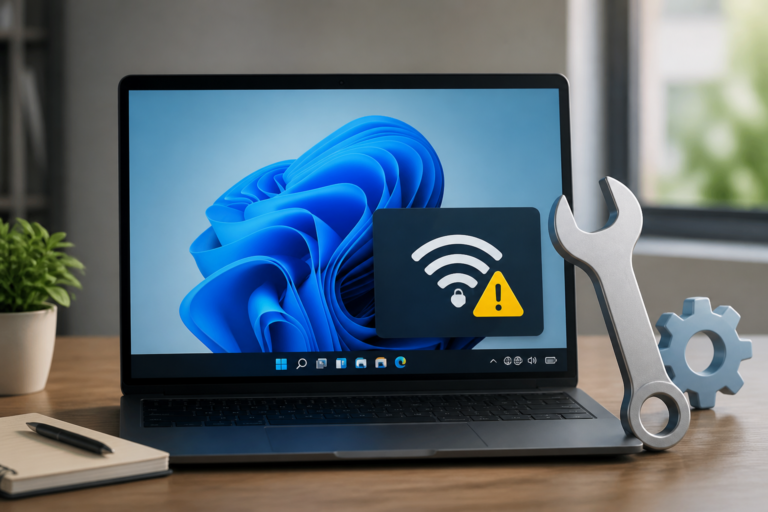

The shift to Windows 11 brought many changes to the network stack. The network stack is the set of protocols that manage data flow. When these protocols do not work well with older hardware, issues arise. Intermittent connectivity is often a sign of a deeper conflict. It may be a conflict between the system and the wireless card. It might also be a conflict between the system and the router. Understanding the root cause is the first step toward a stable connection. Many users feel frustrated when their internet fails. It feels like a step backward after a big upgrade. However, most of these issues are easy to solve with the right knowledge. We must break down the problem into smaller parts. This allows us to test each part of the system until we find the error.
The Role of Network Interface Card Drivers
A driver is a small piece of software that helps the computer talk to the hardware. In this case, the driver helps Windows 11 talk to the Wi-Fi card. If the driver is old, it may not understand the new commands from Windows 11. This lack of clear communication leads to errors. These errors often cause the Wi-Fi to drop. When the system detects an error, it may reset the card. This causes a brief loss of signal. To fix this, users must ensure they have the latest driver. Manufacturers release updates to fix bugs and improve stability. A new driver can often solve the problem immediately. It ensures that the hardware can keep up with the demands of the operating system.
Updating the Driver Software
Updating a driver is a standard task in computer upkeep. Users can find the latest version on the website of the manufacturer. Using the Device Manager in Windows 11 is another way to check for updates. Sometimes, Windows will update the driver automatically. However, these automatic updates are not always the best version. It is often better to get the driver directly from the source. This ensures that the software is made specifically for your hardware. If an update does not help, you may need to try a different approach. Some users find success by rolling back to an older driver. An older version may be more stable than the newest one. This depends on the specific model of the wireless card.
Driver Compatibility and Corruption
Sometimes, a driver file can become corrupt. This happens during a system crash or an improper shutdown. A corrupt file will not work correctly. It can cause the network card to fail at random times. To fix this, you must remove the driver and install it again. This process clears out the bad data. It gives the system a fresh start. You should also check for compatibility issues. Some older cards were not built for Windows 11. They may lack the features needed for a steady connection. In such cases, you might need to buy a new Wi-Fi adapter. A modern adapter will support the latest standards and provide better speed.
Power Management and Energy Efficiency
Windows 11 is designed to save energy. This is a great feature for laptop users. It helps the battery last longer during the day. One way the system saves power is by turning off hardware. If the system thinks you are not using the Wi-Fi, it may turn off the card. This is part of the power management settings. While this saves energy, it can cause the Wi-Fi to disconnect. The system might not turn the card back on fast enough. This leads to a loss of internet access. To prevent this, you can change the power settings. You can tell Windows 11 to never turn off the network card. This ensures that the hardware stays active at all times. It uses a bit more battery, but it keeps the connection stable.
The Impact of Modern Standby
Modern Standby is a feature that keeps the computer connected even when it sleeps. It allows the system to download updates or receive emails in the background. However, this feature can sometimes cause issues. The transition between sleep and wake cycles can be rough. The network card may fail to reconnect after the system wakes up. This is a common complaint among Windows 11 users. If you notice drops after your computer has been idle, this could be the reason. Adjusting the sleep settings can often resolve the issue. You can choose to stay connected while the screen is off. This prevents the system from cutting the power to the Wi-Fi card prematurely.
Adjusting Advanced Adapter Settings
There are deeper settings in the adapter properties. These settings control how the card behaves. One such setting is the Roaming Aggressiveness. This tells the card how often to look for a better signal. if this is set too high, the card may drop the current signal to find a new one. This can cause frequent drops if there are many networks nearby. Setting this to a lower value can help. You can also look at the 802.11 mode settings. Changing these can improve how the card talks to the router. These small tweaks can make a big difference in the quality of the connection.
Network Protocol and Configuration Issues
The way your computer is configured can also cause drops. IP addresses and DNS settings play a huge role. If two devices on the same network have the same IP address, a conflict occurs. This conflict can knock one or both devices off the network. Windows 11 handles these addresses through DHCP. Sometimes, the DHCP lease expires, and the system fails to renew it. This results in a loss of connection. Resetting the network stack can fix these types of errors. This process clears the old settings and gives the system a new set of rules. It is a very effective way to solve many network problems at once.
Resetting the TCP/IP Stack
The TCP/IP stack is the language the computer uses to talk on the web. Over time, these settings can become messy. You can use the Command Prompt to reset these settings. Commands like netsh int ip reset and netsh winsock reset are very useful. They return the network settings to their original state. After running these commands, you must restart your computer. Many users find that this stops the Wi-Fi from dropping. It removes any hidden errors in the system. This is a standard troubleshooting step for any network issue. It is safe and does not delete your personal files.
Flushing the DNS Cache
The DNS cache stores the addresses of websites you visit. This helps them load faster. However, a full or corrupt cache can lead to errors. It might prevent you from reaching certain sites. It can even cause the network to appear disconnected. Flushing the DNS is a simple task. It clears the stored addresses and lets the system start fresh. This can improve the overall speed of your internet. It also helps the system maintain a steady path to the router. While it may not solve every drop, it is a key part of network maintenance.
Environmental and Hardware Factors
Not every problem is caused by the software. Sometimes, the physical world is the cause. Wi-Fi signals travel through the air as radio waves. These waves can be blocked or interrupted. Thick walls and large metal objects can stop the signal. Other electronics can also cause interference. Devices like microwaves and cordless phones use the same frequency as Wi-Fi. If these devices are too close to your computer, the connection may drop. You should place your router in a central spot. This helps the signal reach every room. If you are far from the router, you might need a range extender. A stronger signal is always more stable.
Router Maintenance and Firmware
The router is the heart of your home network. Like a computer, it has its own software called firmware. Old firmware can have bugs that cause devices to drop. You should check for router updates every few months. A simple reboot can also help. Turning the router off and on clears its memory. This can solve many small issues that build up over time. If your router is more than five years old, it might be time for a new one. Newer routers use the Wi-Fi 6 standard. This standard is much better at handling many devices at once. It provides a more reliable signal for Windows 11 machines.
Hardware Failure and Faulty Cards
In some cases, the Wi-Fi card itself may be failing. Heat can damage the small parts inside the card. If the card gets too hot, it will stop working to protect itself. This leads to a sudden loss of connection. If you have tried all software fixes and the problem persists, the hardware may be the issue. You can test this by using a USB Wi-Fi adapter. If the USB adapter works fine, then the internal card is likely broken. Replacing an internal card is possible on many laptops. It is often a cheap way to fix a big problem. It ensures that your hardware is compatible with modern networking needs.
Conclusion
Wi-Fi drops on Windows 11 can be very annoying. However, they are usually the result of a few specific factors. By looking at drivers, power settings, and network configurations, you can find a fix. Most issues are solved by updating software or changing a few settings. It is also important to consider the physical environment. Keeping your router updated and clear of interference will help a lot. Windows 11 is a modern system that needs a modern network setup. When the software and hardware work together, the experience is smooth. We hope this guide helps you maintain a strong and steady connection. A reliable internet is essential for work and play in the digital age.
Disclaimer: This page contains links that are part of different affiliate programs. If you click and purchase anything through those links, I may earn a small commission at no extra cost to you. Click here for more information.