The transition from a handheld controller to a mouse and keyboard setup is a significant shift for any digital user. Many individuals begin their journey with consoles where a thumbstick is the primary tool for movement. However, the shift to a personal computer often requires a new set of physical skills. This change involves more than just a different set of buttons. it requires the user to rewire their motor skills and spatial awareness. While the controller relies on the fine motor skills of the thumbs, the mouse and keyboard utilize the entire hand, wrist, and arm. This article explores the technical and physical steps needed to master this new input method.
Understanding the fundamental differences between these two input styles is the first step in a successful transition. A controller uses an analog stick which operates on a velocity-based system. This means the further you push the stick, the faster the on-screen movement occurs. In contrast, a mouse uses a position-based system. When the mouse moves a specific distance on a pad, the cursor or camera moves a corresponding distance on the screen. This allows for a level of precision that is often impossible to achieve with a thumbstick alone. Learning to use this direct relationship between physical movement and digital output is the core of the transition process.
The Conceptual Shift in Input Modalities
When a user moves from a controller to a mouse, they are moving from a limited range of motion to a vast one. A thumbstick has a physical border that limits how far it can go. A mouse is only limited by the size of the desk surface. This freedom can be overwhelming at first. New users often find themselves moving the mouse too much or too little. It is important to view the mouse as an extension of the hand rather than a tool being manipulated by the fingers. This conceptual shift helps in developing a natural feel for the new hardware.
The keyboard also presents a unique challenge compared to the ergonomic layout of a controller. On a controller, every button is within reach of the thumbs or index fingers. On a keyboard, the left hand must manage dozens of keys. Most users adopt the WASD layout for movement. This requires the fingers to stay in a specific home position while reaching for peripheral keys. This can feel awkward for the first few weeks as the hand builds the strength and flexibility needed to reach keys like Shift, Ctrl, and the number row. Consistency is the key to making these movements feel like second nature.
Optimizing the Physical Workspace
Ergonomics and Posture
Proper posture is essential when using a mouse and keyboard for long periods. Unlike a controller, which allows the user to lean back or sit in various positions, a keyboard setup requires a stable base. The chair height should allow the elbows to rest at a ninety-degree angle. This position reduces strain on the shoulders and neck. The feet should be flat on the floor to maintain a stable core. A stable body leads to more consistent hand movements. If the body is not comfortable, the brain will focus on the pain rather than learning the new input method.
Wrist health is another critical factor in this transition. Many new users tend to rest their wrists heavily on the desk or mouse pad. This can lead to compression and discomfort over time. It is often recommended to use a neutral wrist position. Some experts suggest moving the entire arm from the elbow rather than just pivoting at the wrist. This technique, known as arm aiming, helps prevent repetitive strain injuries. It also allows for a wider range of movement, which is beneficial for accuracy and speed in digital tasks.
Selecting the Right Hardware
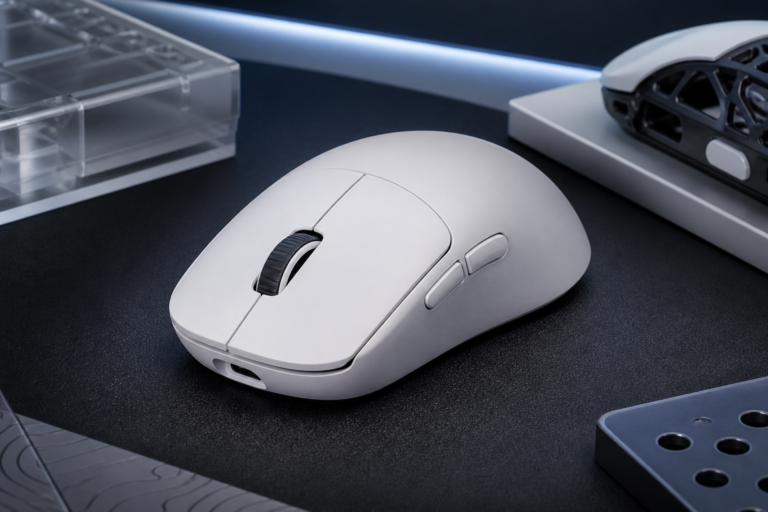
The choice of hardware can greatly influence the ease of transition. For the mouse, the weight and shape should feel comfortable in the hand. A mouse that is too heavy can cause fatigue, while one that is too light might feel difficult to control. For the keyboard, mechanical switches are often preferred over membrane keys. Mechanical keys provide tactile feedback, which tells the user exactly when a keypress has been registered. This feedback is vital for building muscle memory, as it confirms the action without the need to look down at the hands.
Technical Configuration and Sensitivity
Understanding DPI and Polling Rates
DPI stands for dots per inch and refers to the sensitivity of the mouse sensor. A higher DPI means the cursor will move further with less physical effort. Many new users make the mistake of setting their DPI too high. While it feels fast, it often leads to a lack of control. Most professionals use a DPI setting between 400 and 800. This lower range requires more arm movement but offers much higher precision. The polling rate is another factor, representing how often the mouse reports its position to the computer. A rate of 1000Hz is standard for a smooth and responsive experience.
Sensitivity should be adjusted both in the system settings and within specific software. It is helpful to find a single sensitivity level and stick with it across all applications. This consistency allows the brain to calculate the exact amount of force needed for every movement. If the sensitivity changes constantly, the muscle memory will never fully develop. A good rule of thumb is to set the sensitivity so that one full swipe across the mouse pad results in a three hundred and sixty-degree turn in a 3D environment.
Customizing Keybinds
The default keybinds in most software are a good starting point, but they are not always the most efficient. Every hand is different, and some keys may be harder to reach for certain users. It is important to experiment with different layouts. For example, some users prefer to use the side buttons on a mouse for frequent actions. This takes some of the load off the left hand. The goal is to create a layout where the most common actions require the least amount of finger travel. This efficiency reduces the cognitive load during the learning phase.
Developing Muscle Memory through Practice
The process of learning a new input method is essentially a form of motor learning. The brain must create new neural pathways to coordinate the movements of the hands with the visual feedback on the screen. This does not happen overnight. Short, frequent practice sessions are more effective than long, infrequent ones. Spending thirty minutes a day for a month will yield better results than practicing for ten hours in a single weekend. This gives the brain time to process the new information during sleep.
There are many tools available to help with this process. Dedicated training software can help users practice tracking moving targets and clicking small points with speed. These programs strip away the complexities of a full task and allow the user to focus purely on their physical mechanics. Additionally, playing slow-paced games or using creative software can provide a low-stress environment to get used to the keys. The more time spent with the mouse and keyboard, the more the tools will start to feel like a natural part of the body.
Conclusion and Long-Term Benefits
Transitioning from a controller to a mouse and keyboard is a challenging but rewarding endeavor. While the initial learning curve can be steep, the benefits in terms of precision and versatility are significant. By focusing on proper ergonomics, hardware optimization, and consistent practice, any user can make the switch successfully. The key is patience. There will be moments of frustration where the hand does not seem to follow the brain. However, with time, these movements will become subconscious. Eventually, the mouse and keyboard will offer a level of control that far exceeds what is possible on a standard controller.
Disclaimer: This page contains links that are part of different affiliate programs. If you click and purchase anything through those links, I may earn a small commission at no extra cost to you. Click here for more information.