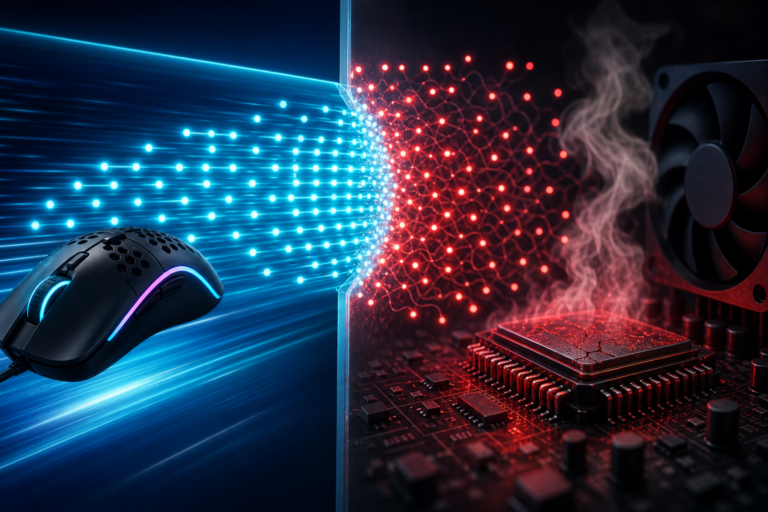
The Graphics Processing Unit, or GPU, serves as the primary engine for visual rendering and complex data processing in modern computing systems. Whether utilized for high-end gaming, professional video editing, or scientific simulations, the GPU is a critical component that demands significant electrical power. As this power flows through the silicon circuits of the chip, it inevitably generates thermal energy as a byproduct. Managing this heat is one of the most important aspects of maintaining a stable and long-lasting computer system. When a GPU becomes too hot, it employs a protective mechanism known as thermal throttling. This article examines the science behind this process, the signs of its occurrence, and the practical steps one can take to mitigate its effects and protect their hardware investment.
Thermal throttling is essentially a survival instinct for computer hardware. Every GPU is designed with a maximum operating temperature, often referred to as the thermal junction maximum. When the internal sensors detect that the temperature is approaching this limit, the system takes immediate action to prevent permanent physical damage. It does this by reducing the clock speed and lowering the voltage of the processor. By working more slowly, the GPU consumes less power and generates less heat. While this action successfully cools the hardware, it results in a visible decrease in performance for the user. Understanding how this balance works is the first step in ensuring that your computer runs at its peak efficiency without risk of failure.
The Mechanics of Heat Generation and Dissipation
To understand why thermal throttling happens, one must first understand how heat moves within a computer. A GPU consists of millions of tiny transistors that switch on and off at incredible speeds. This movement of electrons creates friction and resistance, which manifests as heat. Manufacturers attach a cooling solution to the GPU to manage this. This solution usually includes a metal heat sink and one or more fans. The heat sink draws warmth away from the silicon chip, and the fans blow cool air over the metal fins to dissipate that energy into the surrounding environment. This constant exchange of energy is what keeps the hardware within a safe temperature range during operation.
However, the cooling system is not always able to keep up with the heat produced by the GPU. This can happen during periods of intense use or if the environment is not ideal. When the heat produced exceeds the heat dissipated, the temperature of the chip begins to rise steadily. If the temperature reaches a critical threshold, usually between eighty and ninety degrees Celsius, the firmware of the GPU intervenes. It forces the hardware to slow down regardless of the demands of the software. This is a hard-coded safety feature that cannot be easily bypassed, as doing so would risk melting the delicate circuits within the processor or causing a fire hazard.
The Role of Thermal Interface Material
A vital part of the cooling process is the thermal interface material, often called thermal paste. This substance sits in the tiny gap between the GPU chip and the metal base of the cooler. No matter how smooth a metal surface looks, it has microscopic bumps and valleys. These gaps trap air, which is a very poor conductor of heat. Thermal paste fills these gaps to ensure that heat moves efficiently from the chip to the cooler. Over time, this paste can dry out or crack due to constant heating and cooling cycles. When the paste fails, the transfer of heat becomes inefficient, leading to higher temperatures and more frequent instances of thermal throttling even during light tasks.
Identifying the Symptoms of Throttling
Recognizing thermal throttling is relatively simple if you know what to look for. The most obvious sign is a sudden and drastic drop in performance. In a gaming context, this often appears as a sharp decrease in frames per second. A game might run smoothly for ten minutes and then suddenly become choppy or sluggish. This happens because the GPU has reached its limit and has lowered its clock speed to cool down. Once the temperature drops slightly, the GPU may try to speed up again, leading to an inconsistent experience where the performance fluctuates wildly between smooth and laggy states.
Other symptoms include loud fan noise and system crashes. When a GPU gets hot, the cooling fans will spin at their maximum rated speed to try and compensate. If you notice your computer sounds like a jet engine during use, it is a clear sign that the thermal load is high. In extreme cases, if throttling is not enough to lower the temperature, the system may shut down entirely to protect itself. This results in a black screen or a sudden reboot. Monitoring software can confirm these suspicions by showing real-time graphs of temperature and clock speeds. If the clock speed drops exactly when the temperature hits a high peak, throttling is definitely the cause.
Using Software for Diagnosis
To accurately diagnose thermal issues, users should utilize specialized monitoring tools. These programs provide data on temperature, fan speed, and power usage. By running a stress test or a demanding application, you can observe how the hardware reacts under load. If the temperature climbs rapidly and stays at the maximum limit while the performance drops, you have identified a thermal bottleneck. This data is essential for determining whether the problem is caused by the software settings or the physical condition of the hardware. It allows for a more targeted approach to solving the issue rather than relying on guesswork.
Common Causes of Excessive Heat
There are several reasons why a GPU might struggle to stay cool. The most common cause is the accumulation of dust. Over months and years, the fans in a computer pull in air from the room. This air carries dust, hair, and other small particles. These particles settle on the fan blades and inside the fins of the heat sink. Eventually, they form a thick layer that acts as insulation. This layer prevents air from touching the metal surfaces, making the cooling system much less effective. Regular cleaning is the simplest way to prevent this from happening and is a vital part of hardware maintenance.
Another major factor is poor airflow within the computer case. For a GPU cooler to work, it needs a steady supply of fresh, cool air. If the case fans are not positioned correctly, or if there are too many cables blocking the path, the air inside the case becomes trapped. The GPU then ends up recycling the same hot air it just exhausted, causing the temperature to rise quickly. Additionally, the ambient temperature of the room plays a role. In a very warm room, the cooling system has a harder time moving heat away from the components. This is why computers often struggle more during the summer months or in environments without climate control.
Hardware Aging and Component Wear
As hardware ages, its thermal performance can decline naturally. Beyond the degradation of thermal paste, the mechanical parts of the cooling system can wear out. Fan bearings may become dry or dirty, causing the fans to spin more slowly or stop entirely. Furthermore, modern GPUs are designed with very tight tolerances. Even a small change in the mounting pressure of the cooler can lead to poor contact with the chip. If a GPU has been moved frequently or subjected to vibrations, the cooler might have shifted slightly, leading to hotspots on the silicon that trigger throttling even if the overall temperature seems acceptable.
Effective Strategies for Mitigation
Solving thermal throttling requires a combination of physical maintenance and software optimization. The first and most effective step is a thorough cleaning. Using compressed air to blow dust out of the GPU and the rest of the case can result in a significant drop in temperatures. It is important to hold the fans in place while doing this to prevent them from spinning too fast and damaging the bearings. If the GPU is several years old, you might also consider replacing the thermal paste. While this requires some technical skill to take the card apart, it is one of the best ways to restore the cooling performance to its original state.
Optimizing the airflow in your case is another high-impact solution. Ensure that you have an equal number of intake and exhaust fans to create a balanced pressure system. This helps move hot air out of the case as quickly as possible. You should also organize your cables to ensure there is a clear path for the air to flow. For users who are comfortable with software adjustments, undervolting is a highly effective technique. This involves slightly reducing the voltage supplied to the GPU through software tools. By using less voltage, the chip produces less heat while still maintaining its original clock speeds. This often results in a cooler, quieter system without any loss in performance.
Adjusting Software and Settings
Sometimes, the easiest way to stop throttling is to adjust how you use the hardware. Capping your frame rate in games can prevent the GPU from working harder than necessary. If your monitor can only display sixty frames per second, there is no need for the GPU to produce two hundred. Lowering specific graphical settings, such as shadows or reflections, can also reduce the load on the processor. Furthermore, you can create a custom fan curve in your GPU settings. This tells the fans to spin faster at lower temperatures, which helps catch the heat before it reaches critical levels. These small changes can prevent the hardware from ever hitting the throttling threshold.
Conclusion and Long-Term Care
Thermal throttling is a vital safeguard that protects your GPU from immediate failure. However, relying on it regularly is not ideal, as it limits the performance of your system and indicates that your hardware is under significant stress. By understanding the causes of heat and taking proactive steps to manage it, you can ensure that your computer remains fast and reliable for many years. Regular cleaning, proper airflow, and smart software settings are the keys to a healthy system. Taking the time to care for your GPU not only saves you from the frustration of performance drops but also saves you money by extending the lifespan of your expensive hardware components.
In summary, heat is the greatest enemy of electronics. While modern engineering has provided us with tools like thermal throttling to manage this enemy, the responsibility ultimately lies with the user to maintain a healthy operating environment. Monitoring your temperatures and performing occasional maintenance will keep your GPU running at its best. A cool GPU is a happy GPU, and a happy GPU provides the best possible experience for work and play. By following the guidelines outlined in this article, you can master the thermal dynamics of your computer and enjoy the full power of your technology without compromise.
Disclaimer: This page contains links that are part of different affiliate programs. If you click and purchase anything through those links, I may earn a small commission at no extra cost to you. Click here for more information.